
How to setup VPN on a DD-WRT router?
yestream Engineering
yestream Technical Architecture Desk
In this tutorial, we will show you how to set up your Point-to-Point Tunneling Protocol (PPTP) Virtual Private Network (VPN) connection on your system by using a wireless DD-WRT router.
Before establishing a connection, you must make sure that you have got a working internet connection, a router that supports PPTP, and a VPN account. A VPN connection does not work on an ISP modem. In order to make your VPN connection work, you need to connect another router with your modem.
How to setup VPN on DD-WRT router
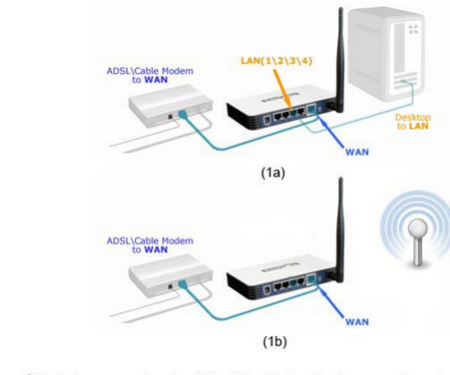
Step 1: Create an ethernet connection or a wireless connection from your router to your computer. Follow 1a if you are connecting Ethernet router and 1b for wireless connection.
Step 2: Click on the Basic Setup tab of the DD-WRT router. You can see a window with several entries. From the Connection Type drop-down menu, choose the PPTP.
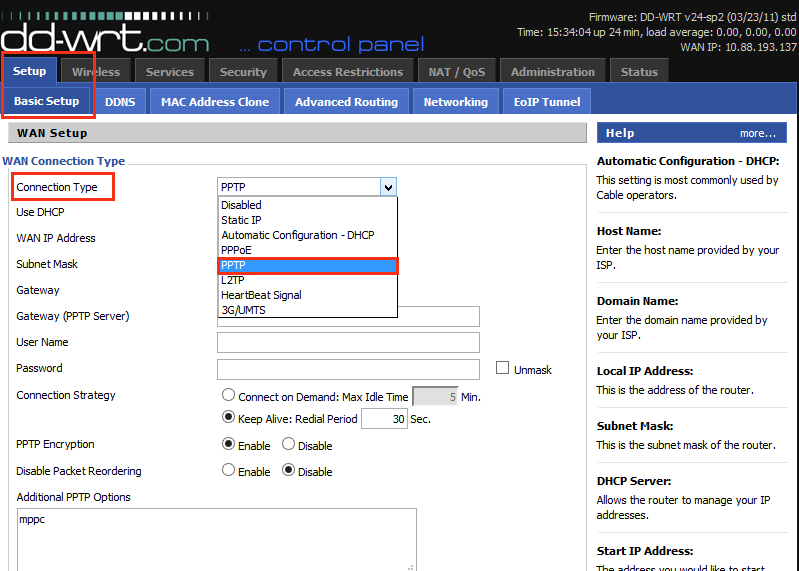
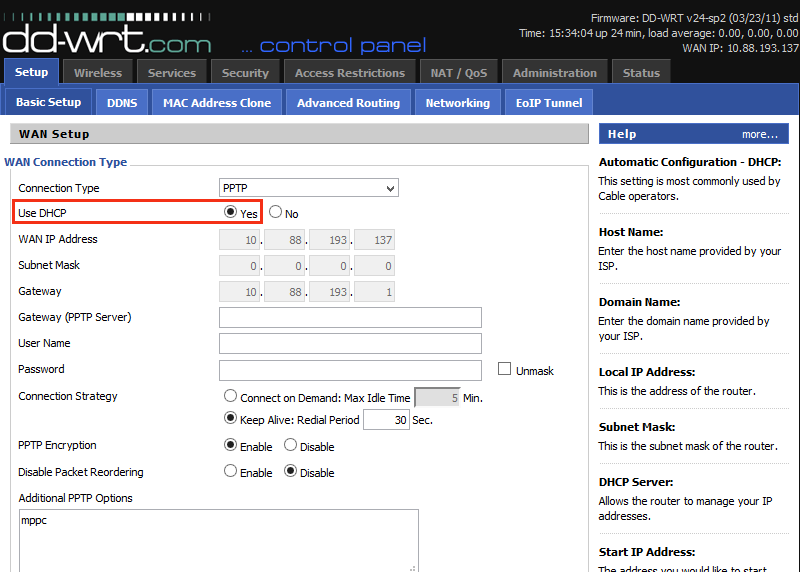
Step 3: For the Use DHCP option, choose Yes.
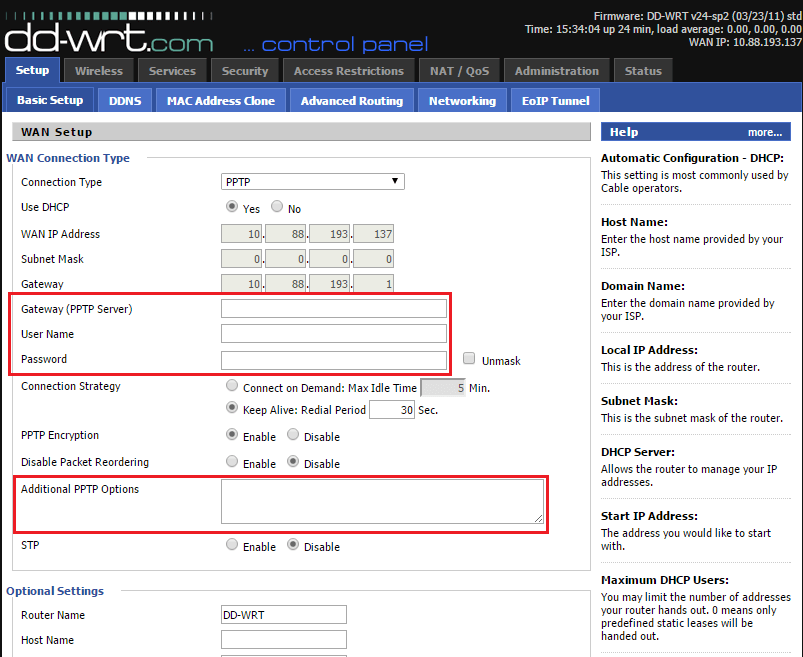
Step 4: In the Gateway (PPTP Server), type the name of the server that you want to use (You can obtain a VPN connection from an online VPN shop) and write Username and Password in the relevant fields. In the additional PPTP option field, write refuse-eap.
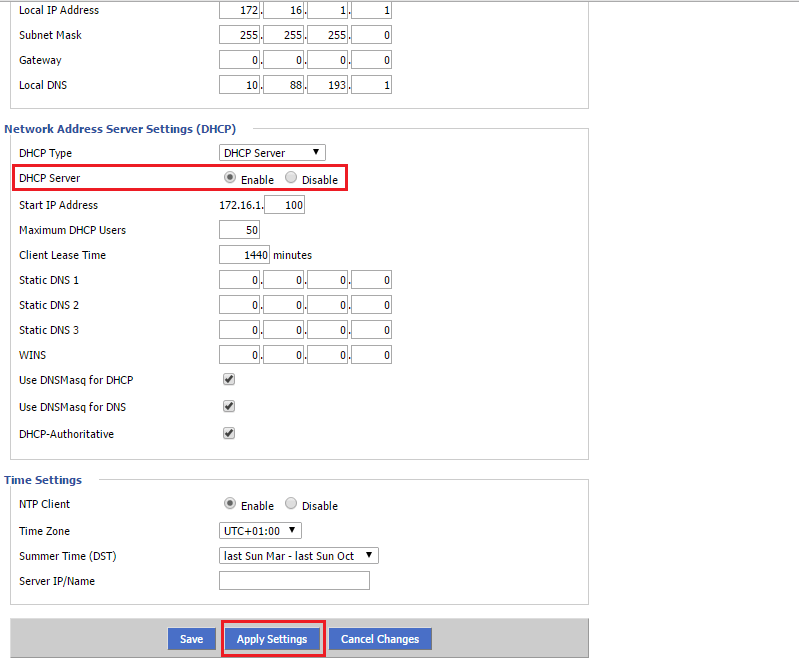
Step 5: Now you must navigate to DHCP Server and make sure that it is enabled. Click on Apply Settings and then click on Save.
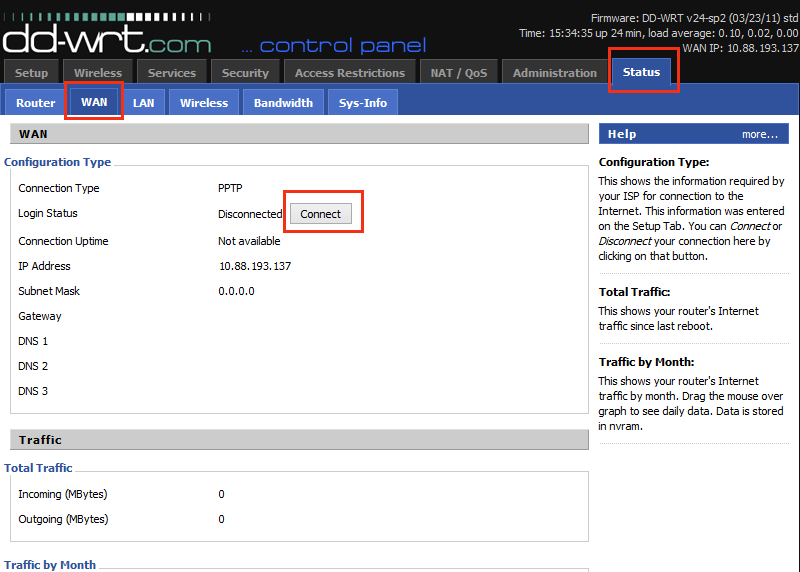
Step 6: Now you must go to the menu bar and click on Status and then click on the WAN tab. Click Connect in order to connect to your VPN provider.
Let us know in the comments section below about your opinion and feedback concerning this article. Thank you in advance.
Developed by yestream.net
Stream Seamlessly with yestream
Looking for a zero-buffering IPTV subscription for your device? yestream delivers over 25,000+ live 4K/FHD channels, full beIN Sports, Botola Pro Inwi, Sky Sports, and a 120,000+ VOD library with instant WhatsApp activation.
Stream 25,000+ Channels with Zero Buffering
Get full access to live sports, NFL, NBA, 4K Cinema, and trending TV series in 5–15 minutes with instant activation across all your devices.
Related Tutorials & Guides
How to Stop IPTV Buffering Forever: 9 Proven Fixes for Smooth 4K Streaming
Tired of constant buffering, freezing, or error loops? Follow these 9 proven technical fixes to eliminate stream stuttering on Firestick, Smart TVs, Android boxes, and Wi-Fi networks.
Wired Ethernet vs. 5 GHz Wi-Fi for IPTV: Which Is Best?
When setting up an IPTV service on a Smart TV, Firestick, or Android TV box, achieving a stable connection is critical for smooth, buffer-free streaming. While both Wired Ethernet and 5 GHz Wi-Fi offer more than enough raw speed for 4K and Full HD st
How to Fix IPTV Channels Buffering Only During Peak Hours?
Experiencing smooth, high-quality streams during the day, only for your channels to start buffering, looping, or freezing between 7:00 PM and 11:00 PM, is one of the most common issues with IPTV services. Because this buffering occurs strictly during